
Resetting Your WPU Password
Follow these steps to change the password to your WPU account.
(Passwords are required to be changed every 90 days)
(If you’ve already tried the instructions below and are still having issues with your login, please contact the Helpdesk by calling 503-517-1399, or emailing helpdesk@warnerpacific.edu and we’ll be happy to help!)
Password requirements are as follows:
- At least 8 characters
- Not previously used
- May Not contain your Username, or your Name
- Contains at least 3 of the following 4 characteristics:
- Upper case letter
- Lower case letter
- Number
- Special Character (~!@#$%^&*_-+=`|\(){}[]:;”‘<>,.?/)
Method 1: Office 365 login
- Navigate to your Office 365 Email login page here: https://outlook.office.com
- If you remember your current password, enter your full WPU email address, and click the Next button.
(If you don’t remember your current password, just select the “Can’t access your account?” option, and follow the prompts to regain access to your account)
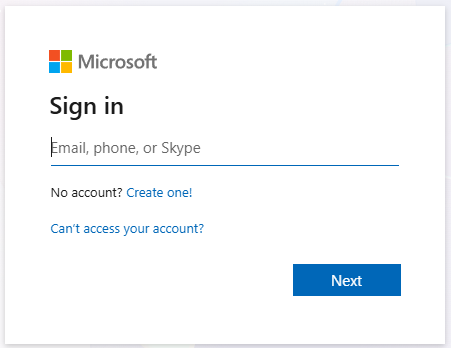
- Enter your password and click the Sign in button.
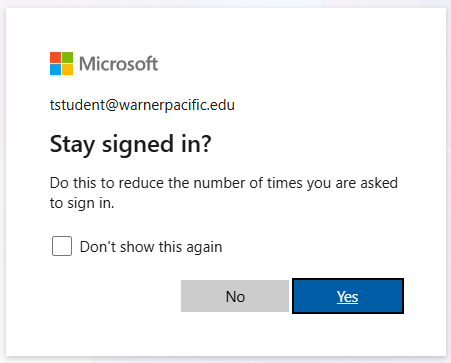
- If this screen appears, choose whether you would like to stay signed in.
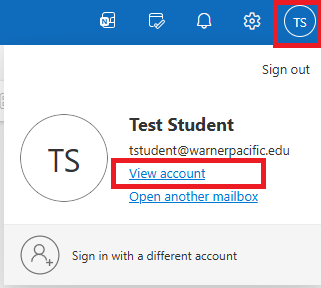
- Click on your initials in the upper right corner, and select View Account.
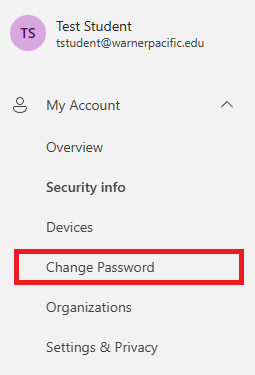
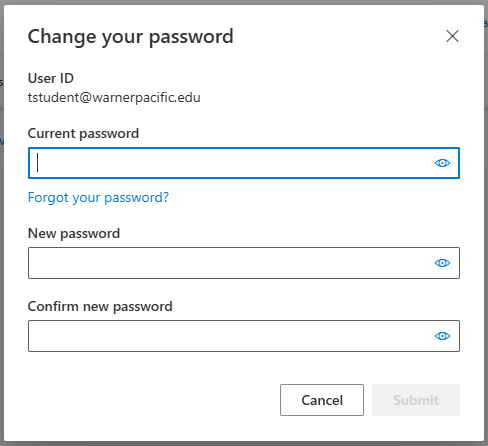
- Click the Change Password menu option at the left side of the window.
- Enter the required info to change your password, keeping in mind the Password Requirements listed above
Method 2: Campus Computers
If your password is expired, you’ll be prompted to change it when you login to a campus computer.
-OR-
If your password hasn’t expired yet, then login and press Ctrl + Alt + Delete, and choose Change a Password from the menu.
If you’ve gotten stuck and scrolled to the bottom looking for info to address your issue, please contact the Helpdesk by calling 503-517-1399, or emailing helpdesk@warnerpacific.edu and we’ll be happy to help!